Title page trouble with Final Draft .pdfs
Reader Josh C wrote in with one solution to a problem that’s been frustrating me for months. When you want to save a script as a .pdf, Final Draft won’t always include the title page. It’s frustratingly inconsistent. The obvious workaround is to save the title page as a separate file, which is what I’ve often done. But then you end up emailing two documents, increasing the confusion on the other end.
Josh was using Final Draft version 6.0.6.0. It turns out, the issue is whether the “Title Page…” window is open or closed.
1. Save your screenplay as normal (as a .fdr)
2. With your saved screenplay still open, go to Document > Title Page. A new, blank Title Page opens.
3. Fill in the blanks, then just CLOSE THE TITLE PAGE. This is the part that I got hung up on forever. If you leave the title page open, then try to save as a PDF, it won’t work. The Title page WON’T attach itself to the PDF if the Title Page is still open when you try to Save as. Just close the Title Page. It saves automatically to your screenplay.
4. With your screenplay still open, go to File > Save As — then select Adobe Acrobat Document (*pdf) - or whatever your computer says. Save the new PDF file somewhere and open it up. The Title Page should be attached at the top of the screenplay where it should be![]()
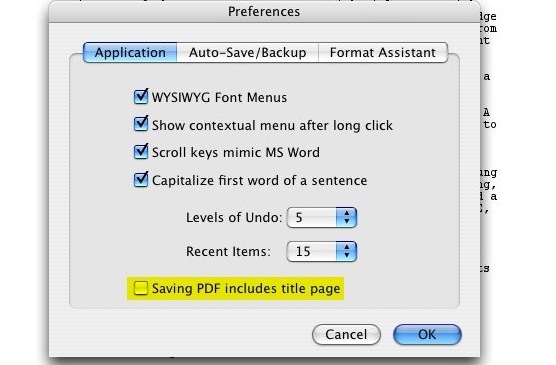
In my tests with 7.1.3, the .pdf will also include the title page even if that window is still open1 — provided you have a certain checkbox checked in “Preferences.”
Yes, I’ll admit that I didn’t read the manual with version 7 of Final Draft. But this is a pretty questionable place to put this checkbox. After all, sometimes you’ll want to include the title page, sometimes you won’t. Does it really make sense to have this be an application-wide preference, housed in a panel that has nothing to do with printing, saving or the specific document you’re working on? It’s pretty much the last place I’d think to look for it.
What’s more, at least on the Mac, Final Draft is using the built-in .pdf facility of OS X. It’s basically just printing to a file.2 Since it seems to be using the standard print architecture, you’d think that choosing the “Print Title Page” option in the Print dialog box would have some effect. It doesn’t. And that’s why it’s frustrating.3
Whenever I complain about Final Draft, I get a nice note from the developers asking me to help out with the next version, and a few emails from companies working on competing applications. So let me make it clear where I stand. Despite its annoyances, I end up using Final Draft because what it gets right generally outweighs what it gets wrong. There’s certainly some inertia on my part, but given a better alternative, I’d switch in a heartbeat. The shipping versions of Screenwriter, Montage and Celtx aren’t better, particularly when it comes to revisions.
I’m hoping the upcoming Screenwriter 6 gives Final Draft some real competition, because that’s what’s lacking. When we were cutting The Nines, I realized that editing software has benefitted tremendously from the battle between Avid and Apple, with new features, better interfaces, and dramatically lower prices. I started out a Final Cut Pro man, while my editor was firmly Avid. We had the luxury of both being right. Both systems are terrific, and I think that’s largely because of the competition.
- However, if you haven’t closed or saved the title page, it won’t be updated until you do. ↩
- You can test this by choosing a two-page layout in the Print dialog box. The next time you choose to Save as PDF, you’ll get facing pages. ↩
- On the Mac, you always have the option of using the “Save as PDF” function built into the Print dialog box. But I’ve never had any luck getting that to include a title page. My guess is that Final Draft treats the title page as a separate document. When you print to a traditional printer, you’ll notice a one-page progress dialog flash for a second. I think Final Draft is kicking out the title page as a distinct job. It never incorporates it into the “real” script. ↩


May 21st, 2007 at 6:32 am
Does anyone know how to complete this process with MovieMagic?
May 21st, 2007 at 7:12 am
On the Final Draft side, John, have you also noticed that it tends to throw off the spacing of the pages? One reader took at a look at one of my scripts, exported into PDF through Final Draft, and mentioned that it seemed to have fewer lines per page than is standard.
I’ve also noticed this myself, that the pages seem “spacier” than many of the scripts I’ve seen.
Any thoughts?
May 21st, 2007 at 7:25 am
I have trouble with the title page also and my solution was to make two pdf documents. However, if you continue to have issues, you needn’t email two attachments. There is a function in the Adobe program to let you insert or replace the title page into the other document. It’s under the menu called “document”.
ZAK
May 21st, 2007 at 8:30 am
I have a great app for OS X I use all the time called “Combine PDFs”… guess what it does:) You can Google for it.
May 21st, 2007 at 8:59 am
EARL: There is no difference in line spacing between Final Draft and Movie Magic Screenwriter. The one thing that will mess up your line spacing is using “Courier New” font where the pitch is wider and creates a larger line space. If you use Courier or better yet, Courier Final Draft font (desinged to create a uniform font between Mac and PC) your script will have no difference between the two leading softwares.
As far as the title page in pdf., I never had this problem, but that is perhaps because I tend to create the title page of my script somewhere in the middle of the drafting process. (Doing this sorta proves to me that script is starting become “real”.) So my title page is allways created, saved and closed by the time I wanna go pdf.
May 21st, 2007 at 10:16 am
Earl (#2):
Compare a page printed directly from Final Draft, and the same page printed from the .pdf. I suspect they’re identical, except that the .pdf is printed at a slight percentage reduction. So, the same words, just a little smaller, with fractionally bigger margins as a result. It’s never bugged me, but it might bug you.
May 21st, 2007 at 11:03 am
PC > Mac
May 21st, 2007 at 12:29 pm
John -
Thanks much for your response, although I think I led you astray with my question. I should have been more clear.
What I meant to say was: do you find that the actual Final Draft layout is a big spacier than regular industry norms?
TOM - Good thoughts there. I think I’m using Final Draft Courier, but I’ll go back and double check.
This site rocks.
May 21st, 2007 at 12:56 pm
Earl: For what it’s worth, due the popularity of Final Draft, the FD layout IS the “regular industry norm” nowadays. You should also make sure that your line spacing is set to “normal” which will give you 54 lines per page (same as Movie Magic).
May 21st, 2007 at 1:52 pm
I’m using FInal Draft 6 and there’s a Final Draft-specific print dialogue that lets you check whether or not the title page gets printed, along with printing revised pages only, back to front, character sides, etc. Click on “Copies & Pages” when the print bubble comes up and it’s the second from bottom (for me, anyway).
May 21st, 2007 at 2:49 pm
Dave (#10):
That’s what I’m referring to:
It has no effect on whether the title page goes into the .pdf.
May 21st, 2007 at 3:13 pm
Oh weird, that check box has always worked for me in Final Draft 6.02.5, both printing via paper and printing to a PDF using the built-in Mac “Save as PDF” thing.
Maybe its a Final Draft 7 bug; I wouldn’t put it past the FD folks to take away/screw up features with each upgrade.
May 21st, 2007 at 3:50 pm
A Geek Alert! My kingdom for a Geek Alert.
May 21st, 2007 at 4:03 pm
(I haven’t tested this in Final Draft 7.1, only in 6.X.Y.Z.)
I’ve always used print to PDF rather than Final Draft’s “Save to PDF” because Final Draft’s PDFs came out as MUCH bigger files. Some difference was to be expected -given that the print to PDF function, in Windows at least, is using Adobe’s software- but the reality was that there was a big enough difference to be prohibitive.
Whenever I print, I just print twice. Once for the title page and one for the screenplay.
May 21st, 2007 at 4:55 pm
If you were using a PC, you could always use free PDF solutions like CutePDF, and just use the standard print dialog to print to PDF
May 21st, 2007 at 6:00 pm
I have a problem just saving the title page. Do I have to save it as a separate doc even to just print it off from FD? (6.0.4.1) I get the title page when I print off the script if I type in the title page info in the same session. But if I type out the title page, save the script (not the title page as a separate doc) and re-open the doc later, the title page is gone. Shouldn’t it still be there as part of the script?
Thanks
May 21st, 2007 at 6:41 pm
Well I’m very glad that final draft managed to allow opening of new documents straight from desktop when FD is already open. That use to drive me crazy.
Now all they need to do is give more than 100 undo/redo clicks saved in memory. I can’t for the life of me understand why it is this way. Do they think we’re all typing on commodore64s and don’t have the spare memory or something?
May 21st, 2007 at 8:39 pm
I use Macromedia FlashPaper. Instead of going to the trouble of saving things as PDFs manually, it allows me to use the PDF format as a virtual “printer”, so I can turn anything text/image-based into a nice and slick PDF. It’s what I use to send my cover letter and curriculum vitae with when e-mailing potential employers.
May 21st, 2007 at 9:35 pm
John,
It took me three months and two tutorials to find out how to save the title page in final draft.
The key: create the title page, go to your toolbar ‘File’ selection and click ‘close,’ not save.
Then save your Final Draft doc.
Jim, pay attention!
I don’t feel like so much of a doof anymore.
May 22nd, 2007 at 8:16 am
John,
Several weeks back Final Draft put out our quarterly software newsletter in which we had a section dedicated to the Title page and how it works in different versions of Final Draft.
Here’s a link to the PDF file:
http://www.finaldraft.com/company/newsletter-archive/newsletter.php?show=newsletter-20070501_fdsoftware.php
As always, if you or your readers have questions or comments, you can submit them to me at feedbackATfinaldraft.com
Kirsten Thayer
May 22nd, 2007 at 9:53 am
Great tip Chakalene. Thanks.
Thanks for the link Kirsten. I just signed up for that newsletter.
How did I ever survive without this site?
May 22nd, 2007 at 11:31 am
Hey
Is the original poster referring to using a PC as opposed to a Mac? Only I write on both using FD6 in my office (Mac) and at home (PC) and find that on the PC I can’t attach a title page to the scripts PDF either and the page size can be out. Of course on a Mac, it just works.
Mike (never reads manuals, needs to buy a mac laptop) O.
May 22nd, 2007 at 1:01 pm
TIP FOR PC USERS: Use DOCUMENT > OPTIONS > DOCUMENT to find that check box.
Fwiw, it was already checked on my (recently downloaded) copy of 7.0, so I’m assuming this is the default setting.
And just to reiterate for those confused about saving a title page in FD:
You have to CLOSE THE TITLE PAGE FIRST BEFORE SAVING IT TO THE DOCUMENT, YES IT WILL SAVE AND NOT BE LOST, DON’T WORRY WHEN YOU CLICK THE X IN THE TOP RIGHT OF THE TITLE PAGE WINDOW EVEN THOUGH IT’S SCARY!
May 22nd, 2007 at 1:21 pm
Have you tried Sophocles (http://sophocles.net)?
I’m almost done with a first draft using it for the first time, so I’ve got about 2 months and 100 pages experience with it and I’ve been very happy with it so far. (I’m using the 2007 “beta” version.)
Just wondering… I don’t see it mentioned here, so either it’s invisible to most people or most people have tried it and decided it’s crap. I’m no pro, so the latter could be true and I wouldn’t know it…
My $.02, Chris
May 22nd, 2007 at 1:58 pm
Matt, (who asked how to do this in MM Screenwriter) in Movie Magic Screenwriter you export to PDF from the “PRINT” dialogue box.
Just make sure you select “create PDF file instead of printing” in the drop down menu in the PRINT TO option window, and make sure the box which says “print title page” is ticked.
Your title page, with your name in a nice size 72 font, will be there every time
May 23rd, 2007 at 5:29 am
Any tips for making the .pdf SMALLER? I’ve tried the “compress pdf” function in the print dialog, which helps slightly… but with a big script, the files are still pretty massive (and mom still uses dial-up so I can’t send it to my biggest fan).
May 23rd, 2007 at 5:37 am
Thanks Mariano!!
May 23rd, 2007 at 8:38 am
my goodness, how complicated. why not just download any of the free open source PDF printer drivers? then from any application you want, creating a pdf is as simple as pressing Print. I’ve compared the results in FD and Sophocles with the PDF tools they have built-in, and there was no difference at all in the case of FD. Sophocles has added to functionality to the PDF it creates, allowing you to jumpt to certain scenes as it creates a bookmark pane if desired; this would not be done if you used the pdf print driver.
here’s one:
http://sourceforge.net/projects/pdfcreator/
May 23rd, 2007 at 2:55 pm
Matt, you are most welcome
May 24th, 2007 at 7:33 am
Scott (#26):
I think the reason Final Draft’s PDFs are so huge is that it converts the text to images or vector outlines (I’m not sure which) to prevent copying of the text within the PDF. If you have a PDF print driver (such as CutePDF) you can print to PDF and it will produce a much smaller file. The disadvantage is that people will be able to copy and paste the text directly from the PDF.
May 24th, 2007 at 2:57 pm
So, after what Scott (#26) and Lex (#30) said…, can you create a small pdf file without allowing people to copy-paste its text? I have Final Draft 7 in PC, and a 111-page script becomes a 4.4Mb pdf file. (However, now Gmail allows to send up to 20Mb!
May 24th, 2007 at 9:40 pm
After spending too many hours trying to solve this very problem with Finaldraft, I simply formatted my title page as the first page of my script document and set the page number to start at 0.
Now my title page comes up within my finaldraft document as the first page and the first page of my script starts with 1.
Perhaps it’s too simplistic, but it worked for me. No more pesky pdf issues.
May 28th, 2007 at 9:50 am
I didn’t read the Final Draft manual either, John (good thing I read your site).
Thanks, Josh C.
June 4th, 2007 at 11:05 pm
A little off topic…I can’t seem to get the toolbar boxes to stay the way I want them. Anyone got a fix for that?
June 7th, 2007 at 6:19 am
Definitely use Acrobat Distiller (this is part of the non-free version of Acrobat unfortunately) and “print to pdf” instead of using Final Draft’s export to PDF feature. The distiller PDF doesn’t have the reduced font size and the file size is 60% smaller.
Re: the title page– I often find it better to export the title page separately anyway: as a title-only page (for contests) and as a standard title page (for normal submissions). I insert them as needed to the body of the script which is real easy to do in Acrobat.
September 15th, 2007 at 9:02 pm
John,
I was having trouble with the Final Draft Title page save for PDF, I did a google search and you had the answer!
Thank you very much.
Andy Forrest
October 31st, 2007 at 9:50 am
Thank you so much. This has been a problem for me for YEARS and someone at Done Deal linked this. Hurray!
November 11th, 2007 at 5:28 pm
John,
In transferring files from Final Draft format to .pdf format, some of the actions and/or dialogue get infused (this happens most often when the word MORE showing the continuation to the next page appears within the next page’s dialoge), and I cannot figure out how to get rid of this. Any thoughts?
November 28th, 2007 at 10:05 pm
So you obviously have to do this when you’re DONE writing the screenplay, right?
Because although your tip worked, and I have a PDF of the title page attached to the first few pages, I can’t work on my script in PDF form, can I?
January 19th, 2008 at 4:40 pm
Hi: I’m still stumped on this one. I have followed the instructions, yet the title page is never attached. I read recently that producers and agents HATE the separate title page. So, I’ve opened and saved a new document, then with that open, I’ve opened, filled out, then closed the title page, and then close the screenplay. The title page just disappears. When I open the document again, there’s no title page attached. The same is true when it is emailed. Is there any way to attach the title page to the screenplay, or is this just a major flaw in the software? It seems silly to open a title page separately, just to see the title page. I am trying to save in a .fdt format. Can anyone help? Many thanks.